AAMRK Solutions

AAMRK Nesting Plugins

Turn a die layout and your carton artwork into a print-ready multi-up sheet without leaving your design application. Every station is placed, rotated and clipped to its die line, with bleed, marks, colour bar and station IDs added for you.

Ai Adobe Illustrator

Cdr CorelDRAW

CFF2 - DXF

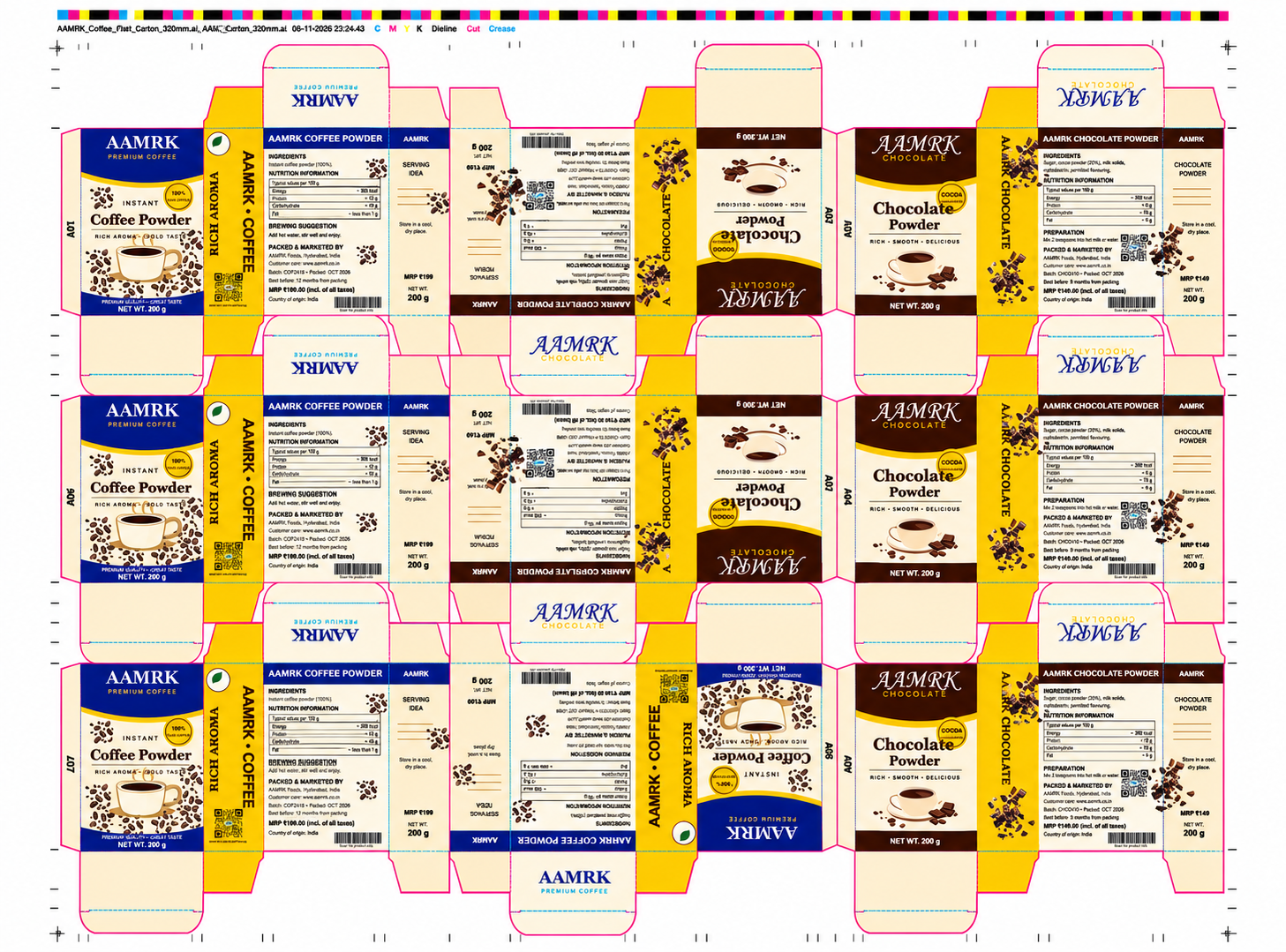
Coffee + chocolate gang · 9 stations · built by AAMRK Nesting


    From die layout to press sheet in five steps

    The plugin works inside the application your studio already uses. Your artwork stays native and vector. Files are saved and exported with the application’s own Save As and Export.

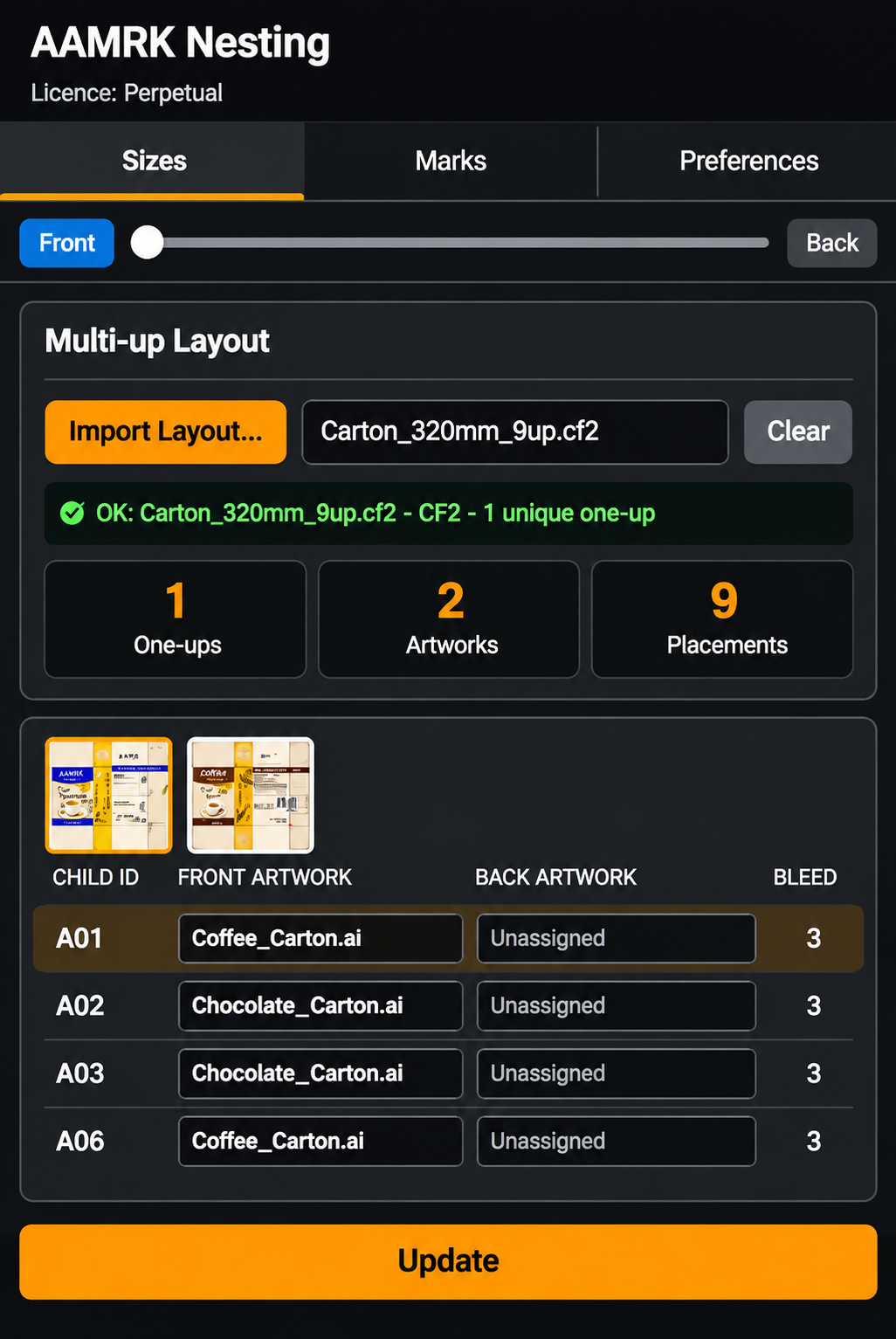
    Import the layout

    Open the multi-up die layout as CF2, CFF2 or DXF. The panel finds each unique one-up and lists its stations (Child IDs). Impact users can send the layout straight to the panel.

    Assign artwork

    Choose the Front artwork, and the Back for double-sided jobs, for each one-up or for single stations. Use open documents or import PDF and AI files.

    Place and clip

    Each station gets its artwork, rotated to match the layout and clipped to the die line with bleed. The workspace stays live, so any station can be reassigned.

    Plate and marks

    Set plate size, gripper and centring. Add marks, colour bar, cut and crease marks, file info and station IDs, or apply a saved Marks Template.

    Update and output

    Edit the source artwork and click Update to refresh every station that uses it. Save the sheet as AI or PDF for plate making.

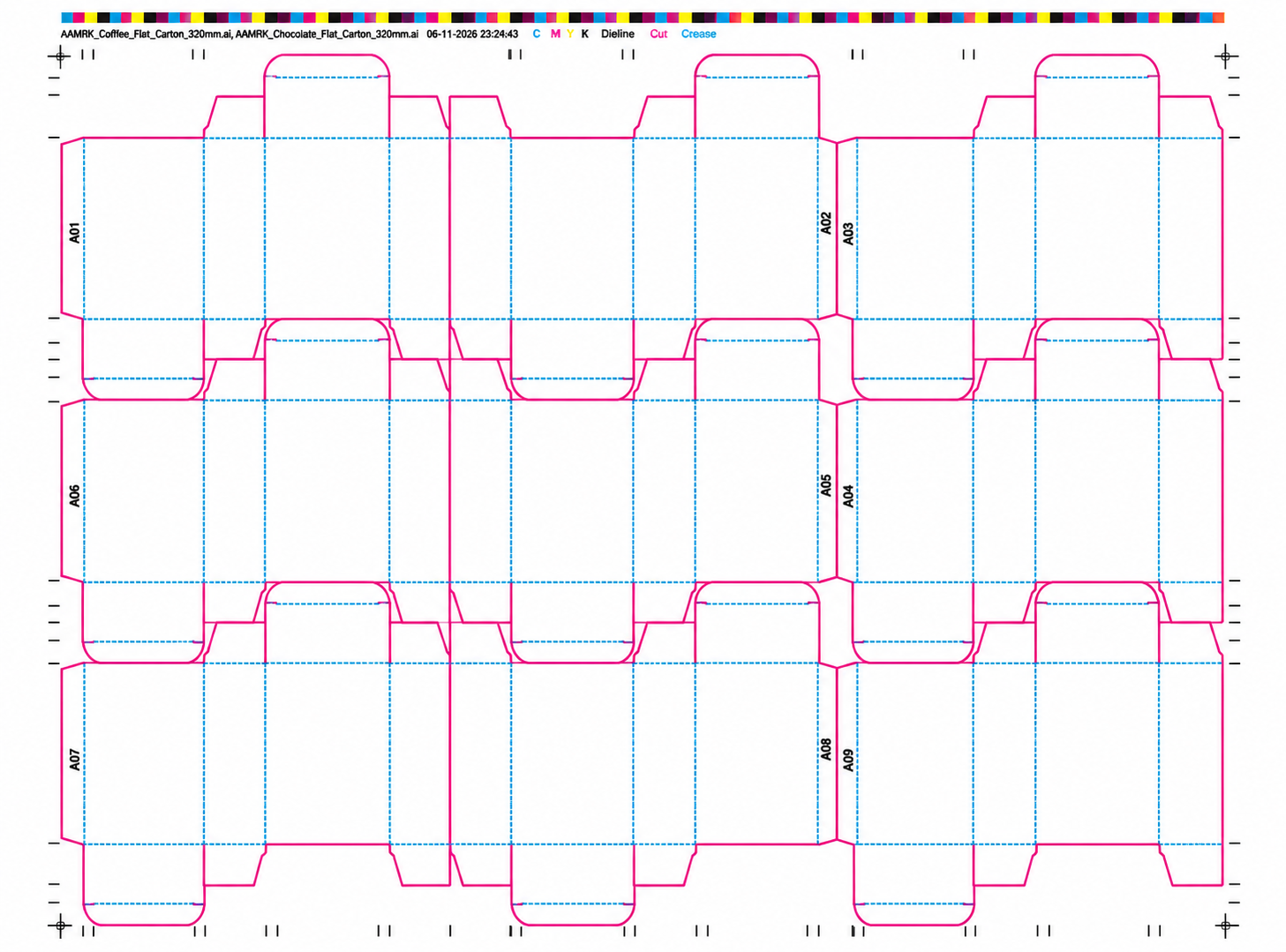
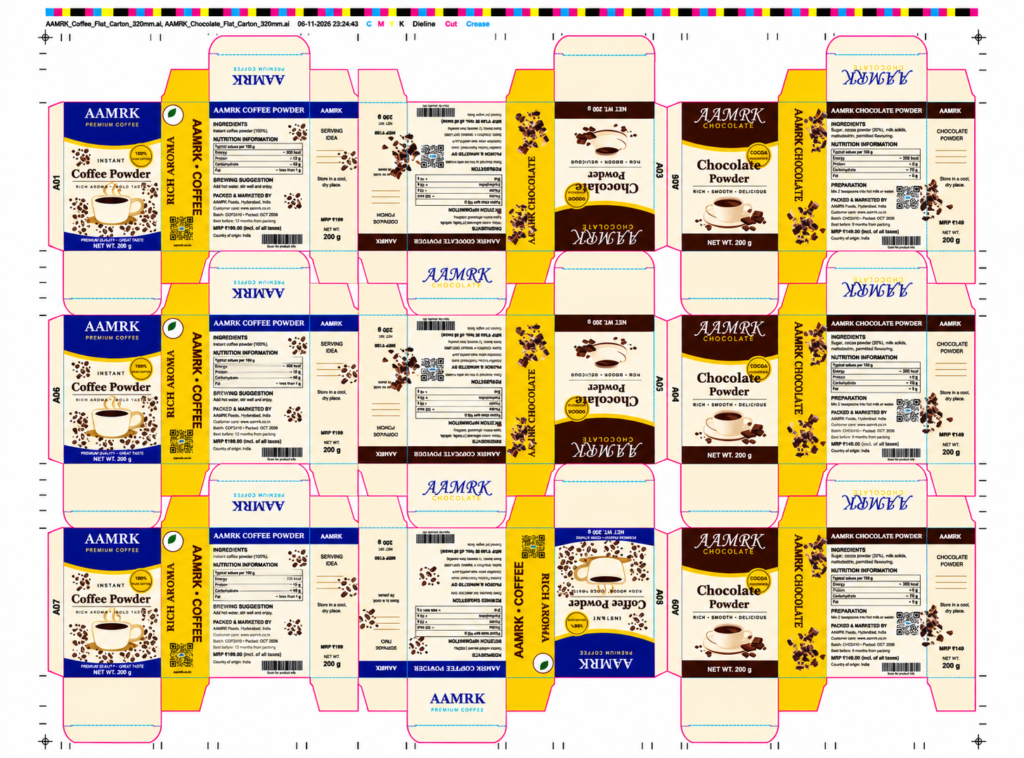
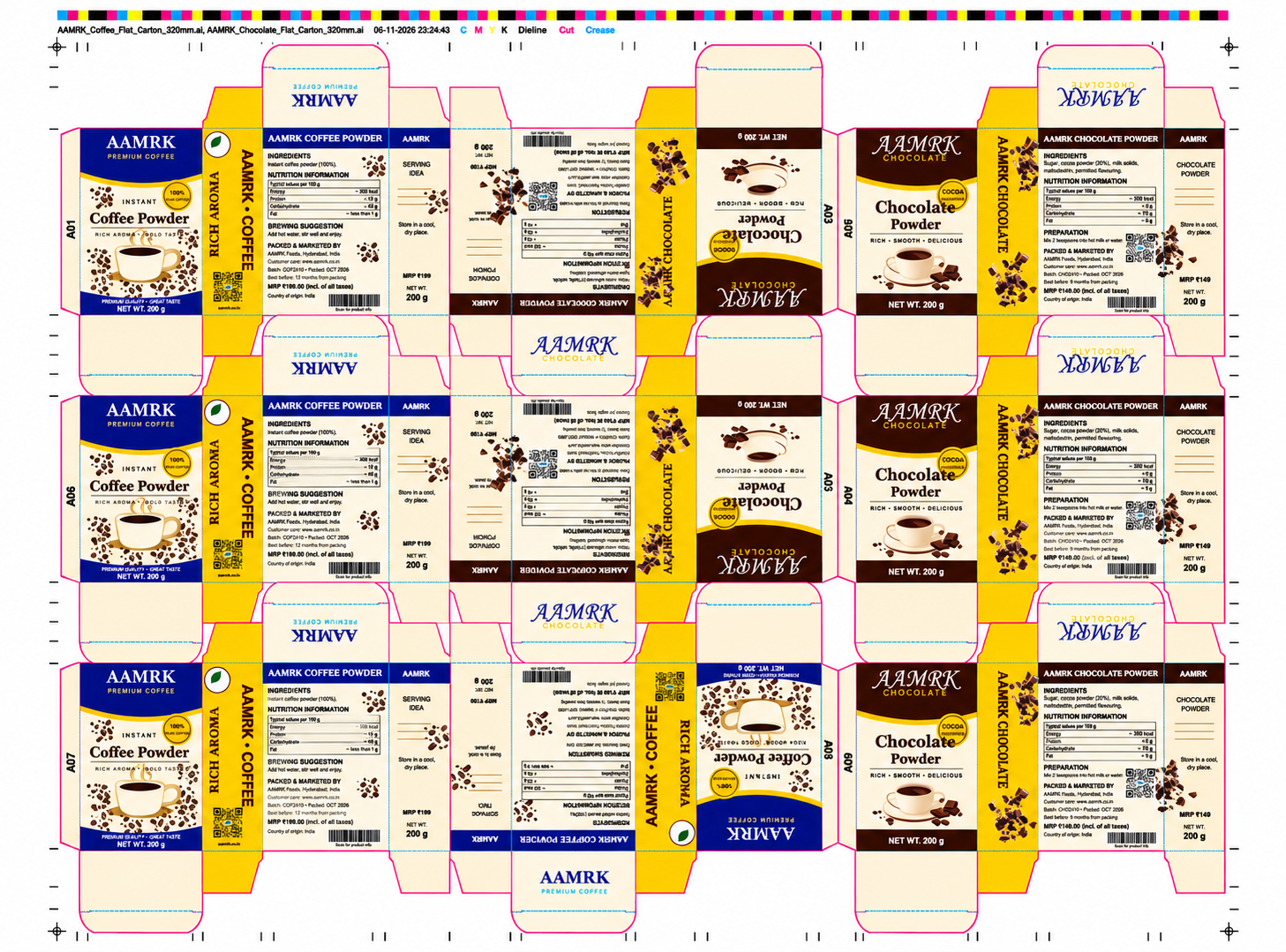
    AAMRK Coffee and Chocolate Dieline Sheet 3×3 Carton Dieline Print Layout


      Two products, one sheet

      Coffee Powder 200 g

      320 mm flat carton

      Chocolate Powder 200 g

      320 mm flat carton

      Assign per station

      The same one-up die can carry different artwork on different stations. On this sheet four stations print coffee and five print chocolate, in one run.

      Stations that are rotated in the layout get their artwork rotated automatically. In Illustrator, imported PDF and AI artwork snaps to its own cut line, or to its trim box when there is none.

      A01

      coffee

      A02

      chocolate

      A03

      chocolate

      A04

      chocolate

      A05

      chocolate

      A06

      coffee

      A07

      coffee

      A08

      coffee

      A09

      chocolate

      Everything the sheet needs before the plate

      Layout

      Die layouts from CAD

      Import CF2, CFF2 or DXF multi-up layouts. Unique one-ups and their stations are found automatically. Cut, crease and perforation lines go on their own locked layers.

      Artwork

      Front and back

      Assign Front and Back artwork per one-up or per station. A Front/Back slider shows either side, or a blend of both for checking registration.

      Artwork

      Live workspace

      After Apply the sheet stays live. Reassign a station and it changes straight away. Click Update after editing the source artwork to bring the sheet up to date.

      Clipping

      Bleed and common lines

      Artwork is clipped to the die line plus the bleed you set (per station in Illustrator). Shared cut lines between neighbouring stations are found, and you choose which station owns each line.

      Marks

      Marks library

      Place your own vector marks (PDF, AI, EPS, SVG) on a 3×3 grid around the nest or the plate, in Registration colour. A starter marks library is installed.

      Marks

      Marks Templates

      Save every mark and production object on a sheet as a template. The next job is marked in one step, and positions follow the new plate size.
      Production

      Production objects

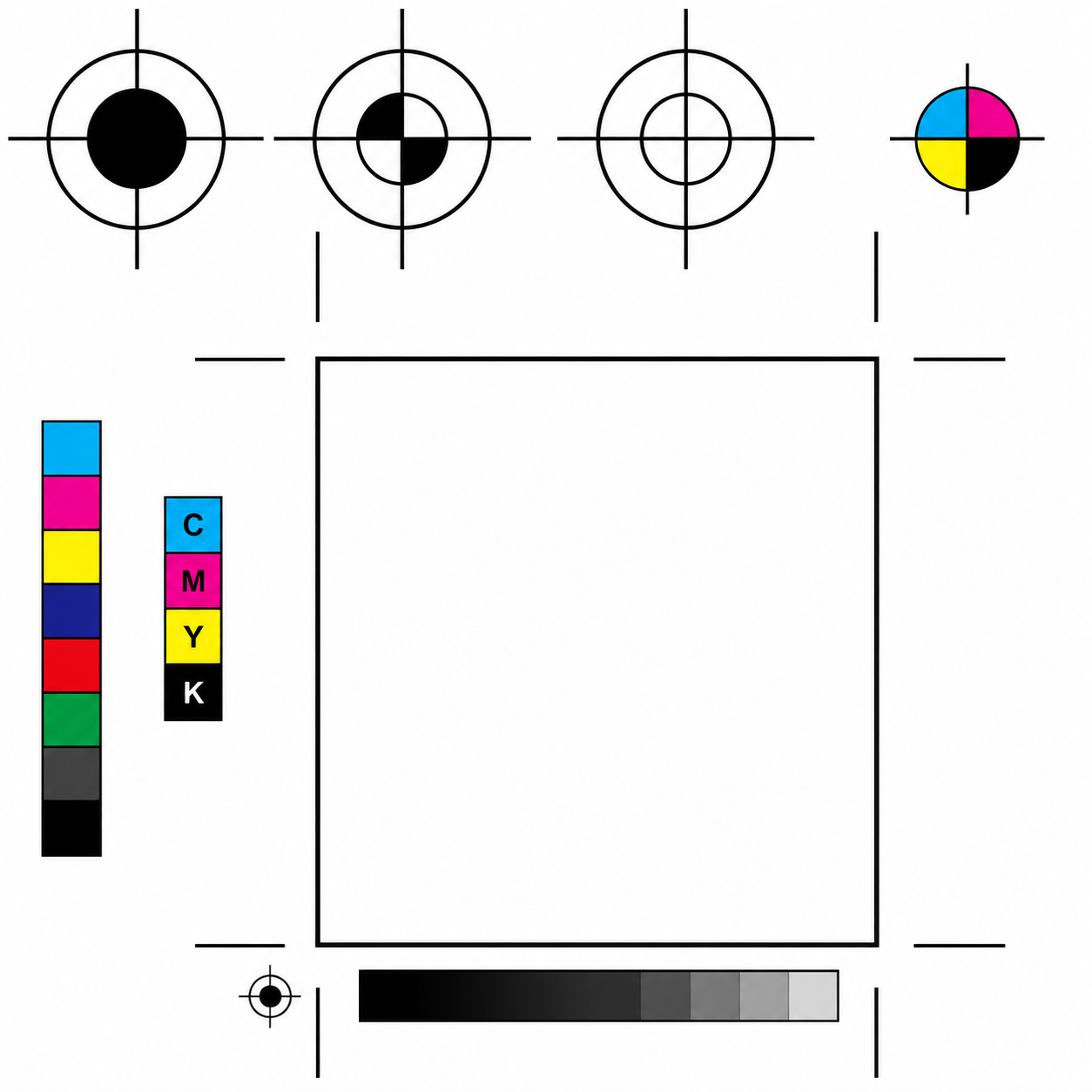
      • Colour bar with one patch per ink
      • Cut and crease marks on the plate edge
      • File info line with file names, date and inks
      • Station IDs numbered per keyline (A01, B01…) in row or column order

      Output

      Print-Safe Die lines

      Die lines inside the artwork become the spot colour Dieline. Cut, crease and dieline strokes overprint, so switching their plates off leaves no white gaps.

      Plate

      Plate and gripper

      Enter plate width, height and gripper, and centre the nest horizontally or vertically. Size-dependent marks are rebuilt on Apply.


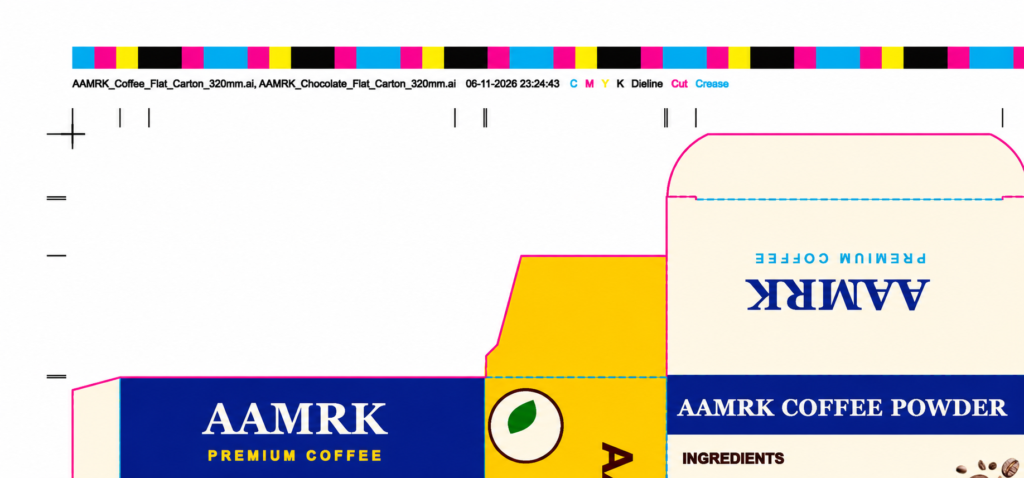
        Colour bar and file info. The file info line names the artwork files and the time of the last save, and lists every ink on the sheet in its own colour.
        Inks C M Y K-Spots Dieline | Cut | Crease
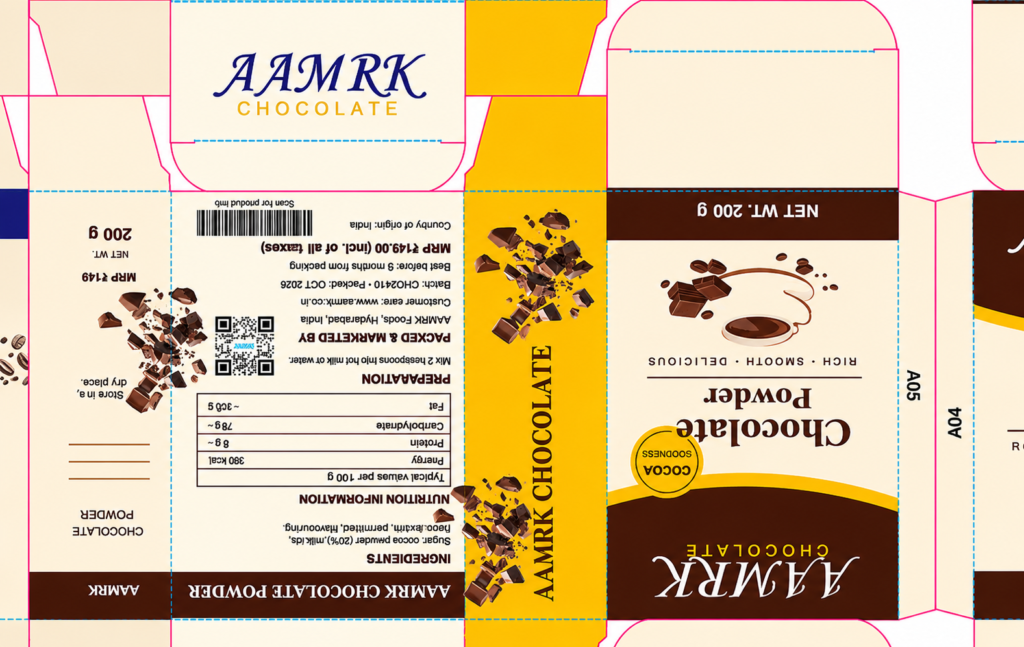
        Rotated stations. Station A05 is turned 180° in the layout, and its artwork turns with it. Every station carries its ID for checking at press and die-cutting.

        Three tabs, one job

        The same panel layout in Illustrator and CorelDRAW, so operators who use both need to learn it only once.

        Sizes

        Import the layout, assign artwork to every station, set the plate, and Update.

        Marks

        Bleed, common lines, the marks library, Marks Templates and the production objects.

        Preferences

        Metric or imperial units and the default marks folder. Fields also accept 1in, 2.5cm or 72pt.


          Choose your application

          Windows 10 and 11
          64-bit. Administrator rights are needed for installation only. 8 GB RAM recommended for large sheets.