Optimize your packaging production with Nesting Plugins in Philippines by AAMRK. Automatically arrange carton artwork on multi-up die layouts, apply bleed, add production marks, and generate print-ready sheets directly within Adobe Illustrator and CorelDRAW.
Adobe Illustrator (AI)
CorelDRAW (CDR)
CF2, CFF2 & DXF Formats
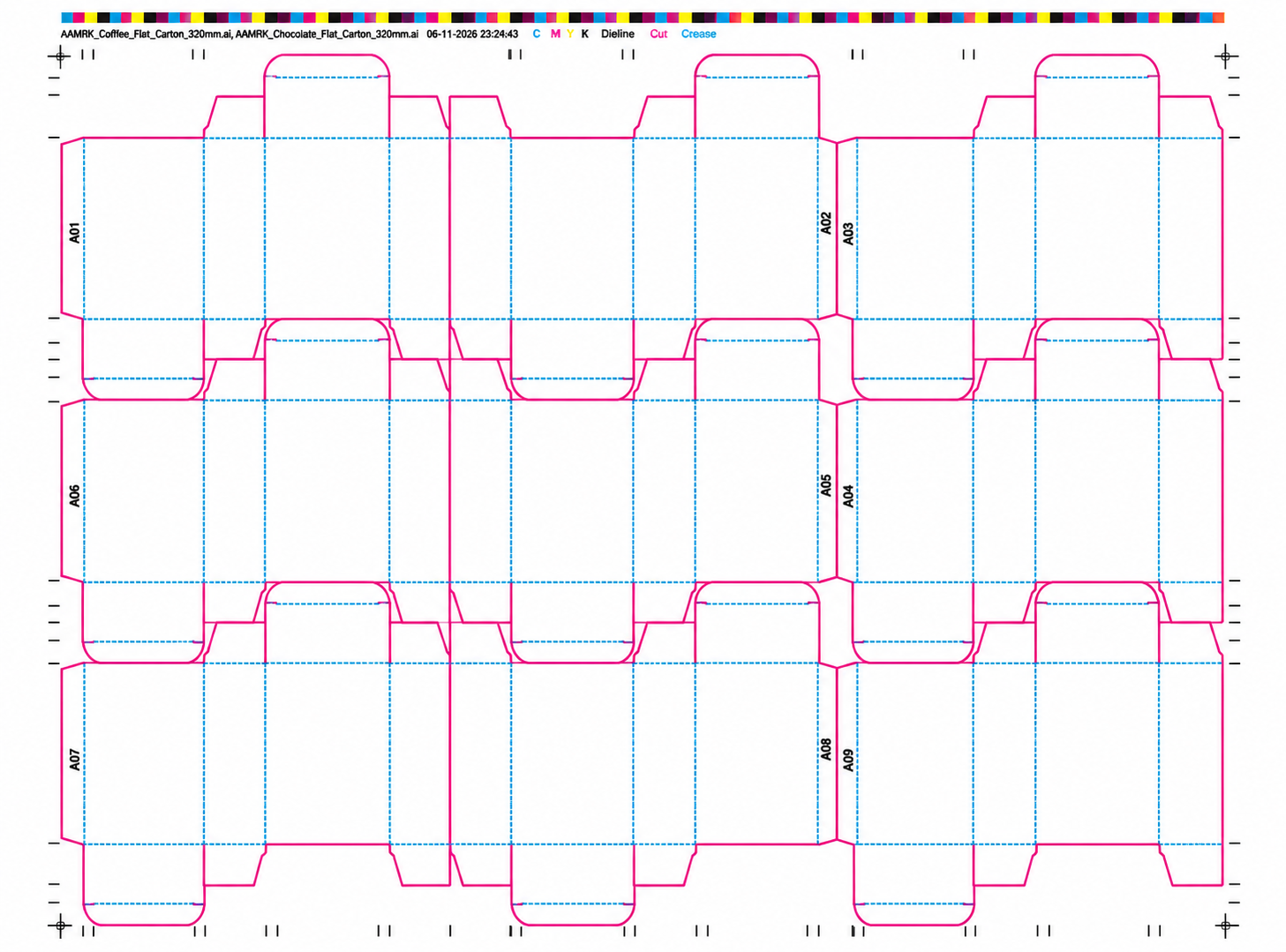
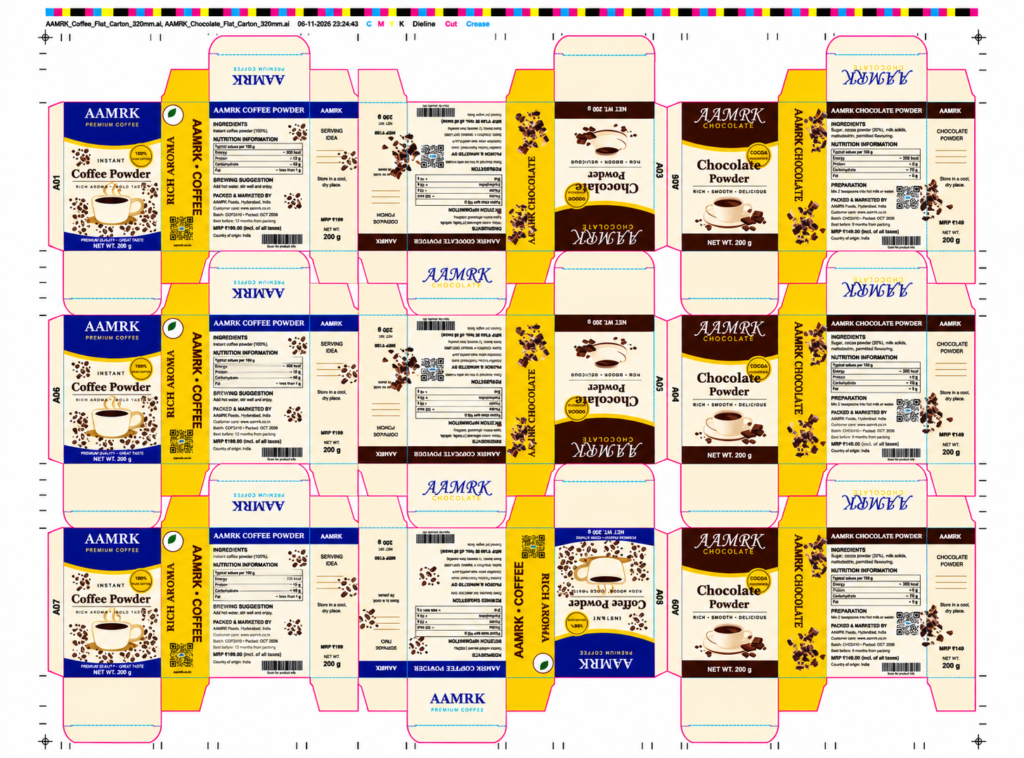
Coffee + chocolate gang · 9 stations · built by AAMRK Nesting
How it works
From Die Layout to Print-Ready Sheet in 5 Easy Steps
Work directly within your preferred design application while keeping artwork editable and vector-based. Create production-ready layouts without switching between multiple applications.
Import Die Layouts
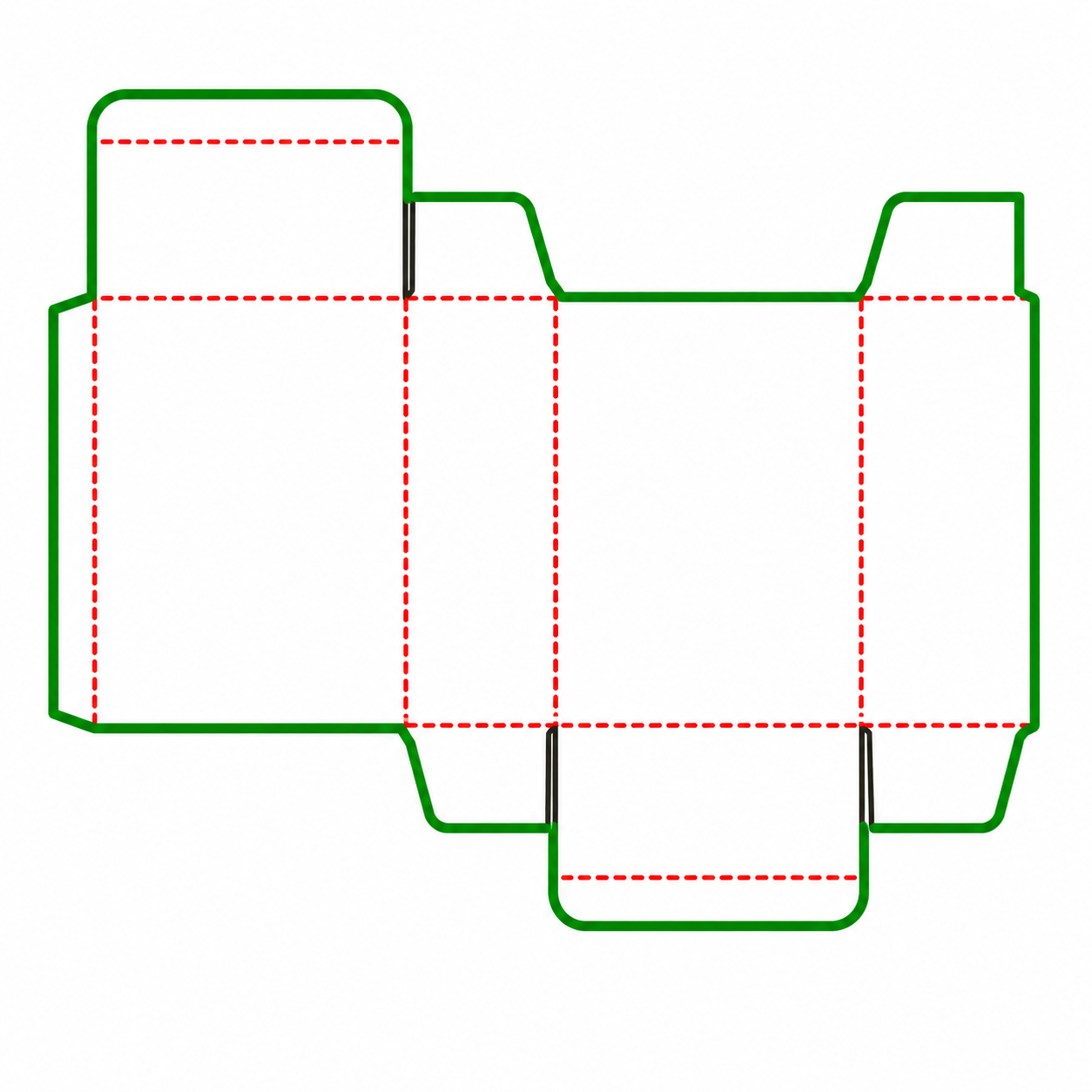
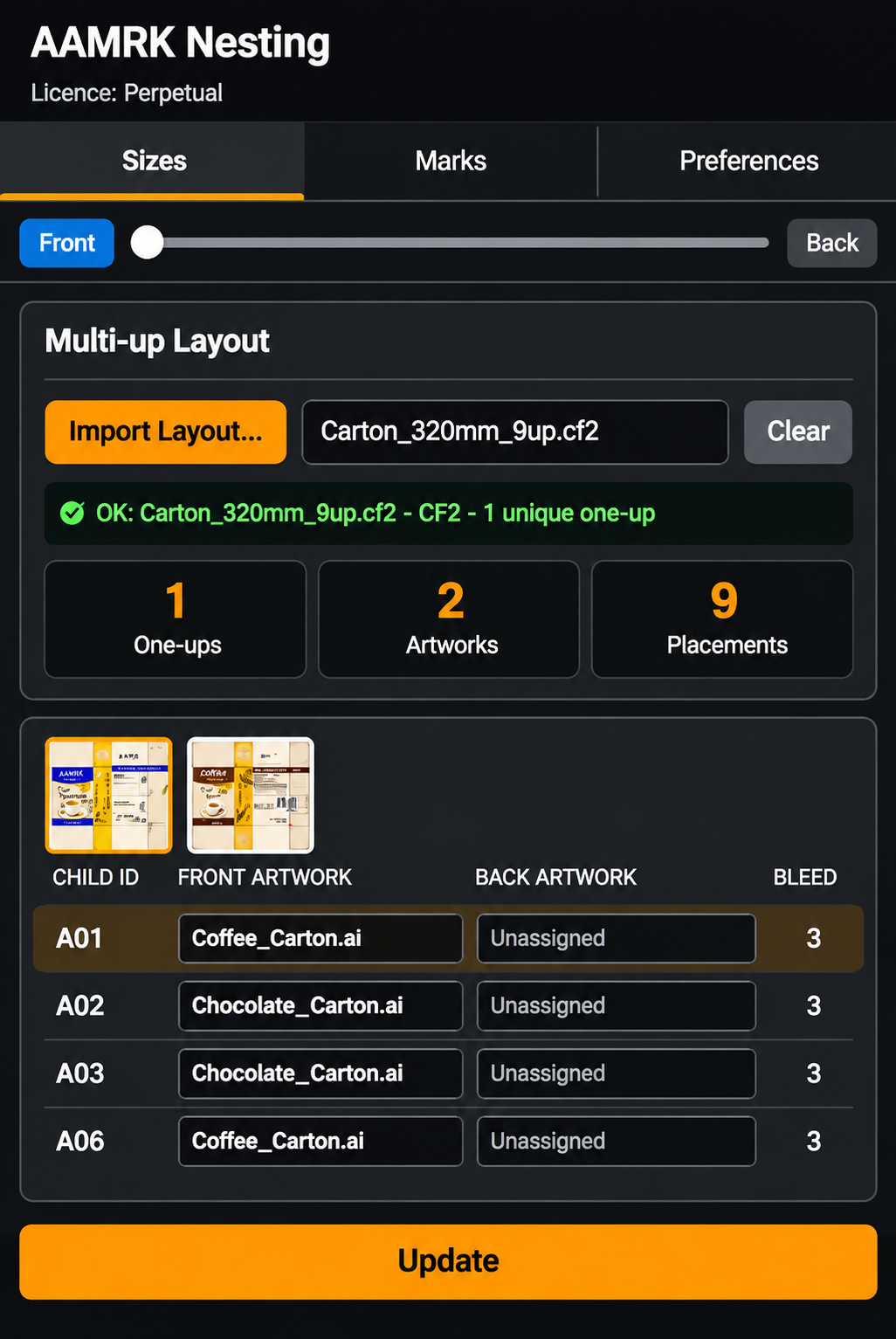
Import multi-up die layouts in CF2, CFF2, or DXF formats. The plugin automatically identifies unique one-up designs and their individual stations.
Select Artwork
Select front and back artwork for each design or individual station. Import PDF and AI files or use existing documents to organize your packaging artwork.
Place and Clip Designs
Position artwork according to the die layout, rotate it automatically, and clip it to the die line with the required bleed settings.
Configure Production Marks
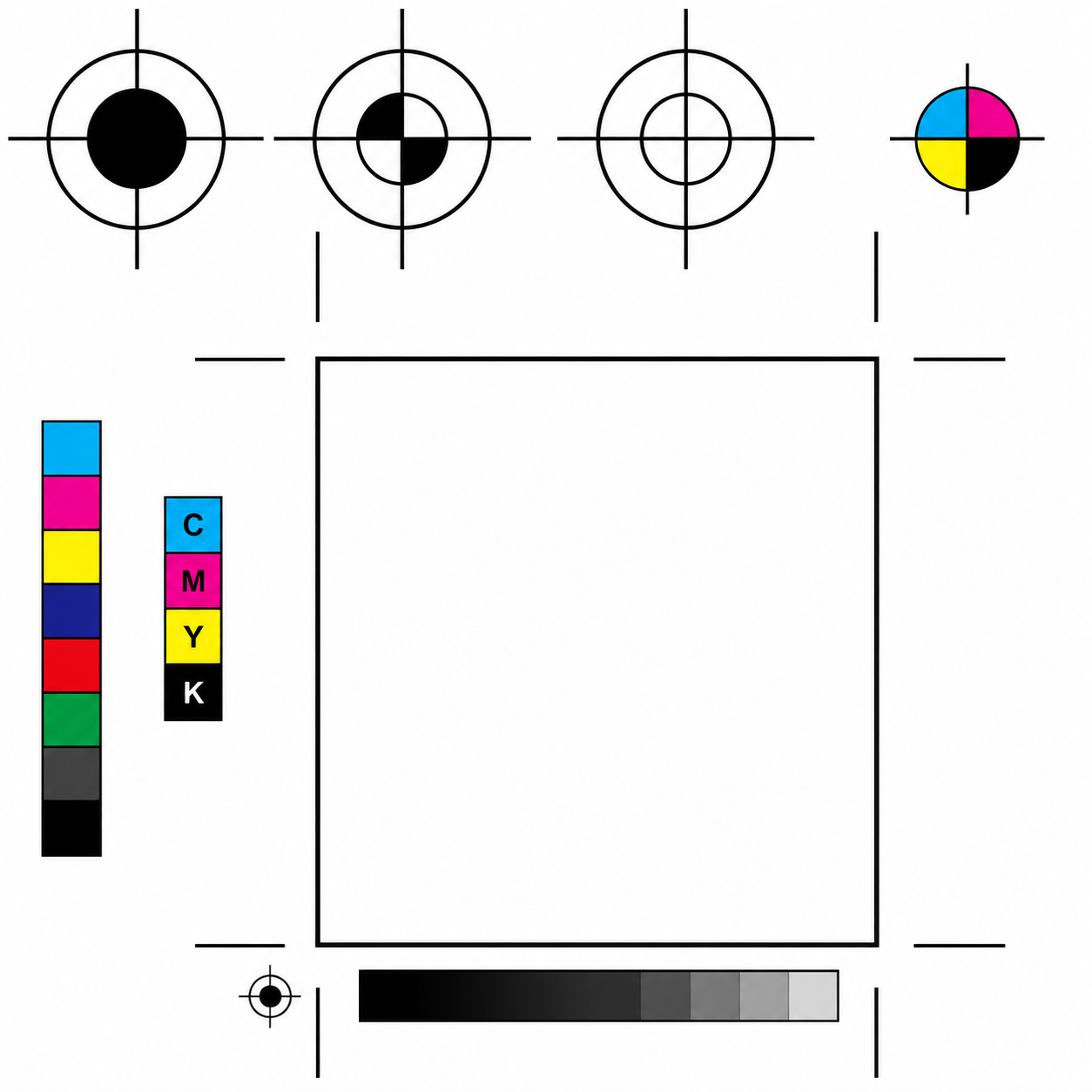
Configure plate dimensions, gripper, and alignment. Add colour bars, cutting marks, crease marks, file information, and station IDs using saved templates.
Update and Export Files
Update artwork across assigned stations whenever changes are made. Export the completed sheet as AI or PDF for accurate plate-making and production.
Mixed Packaging Jobs
Multiple Designs, One Sheet
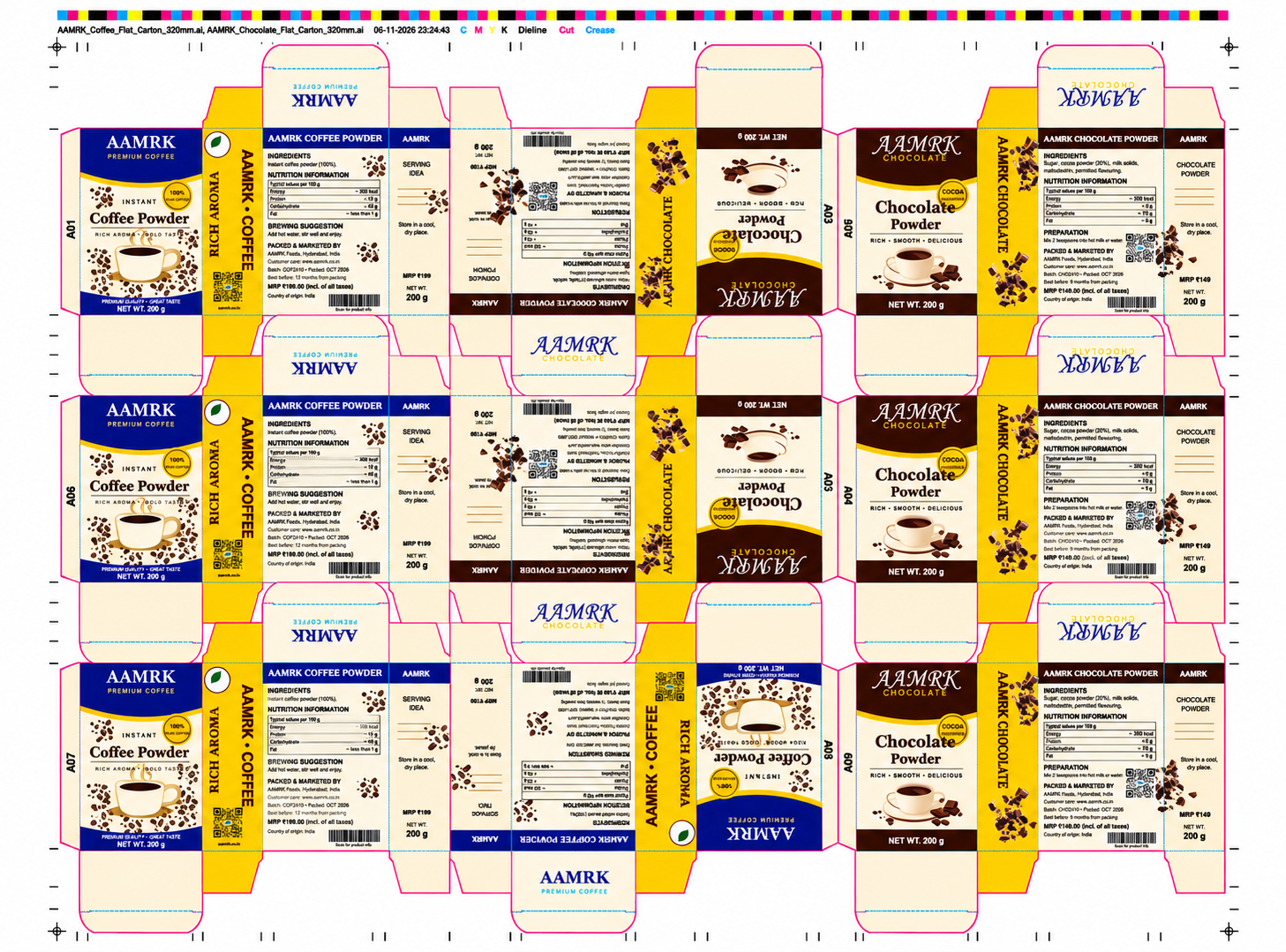
Coffee Powder 200 g
320 mm flat carton
Chocolate Powder 200 g
320 mm flat carton
Multi-Product Artwork Nesting
Arrange multiple packaging designs on one production sheet by assigning different artwork to individual stations, automatically rotating designs to match cutting layouts and reduce material waste.
A01
coffee
A02
chocolate
A03
chocolate
A04
chocolate
A05
chocolate
A06
coffee
A07
coffee
A08
coffee
A09
chocolate
Everything You Need for Production-Ready Nesting
Layout
CAD Layout Integration
Import CF2, CFF2, and DXF layouts and automatically identify unique designs, cutting lines, creasing lines, and perforations.
Artwork
Front & Back Artwork
Assign front and back artwork individually for each design or station, with preview options to check registration and alignment.
Artwork
Live Artwork Workspace
Make station changes directly within the workspace. Update the layout whenever the original artwork is modified.
Clipping
Accurate Clipping and Bleed
Clip artwork to die lines with adjustable bleed settings. Identify shared cutting lines between neighbouring stations for better production accuracy.
Marks
Custom Marks Library
Import and position vector marks in PDF, AI, EPS, and SVG formats. Arrange marks around the nesting layout or printing plate.
Marks
Reusable Marks Templates
Save production marks and layout settings as templates to simplify future jobs and maintain consistency.
Production
Production Details
Add colour bars, cutting and creasing marks, file information, ink details, and station IDs for easier production management.
Output
Print-Ready Die Lines
Manage cutting, creasing, and dieline strokes with dedicated spot colours and overprint settings to support accurate printing.
Plate
Flexible Plate Configuration
Set plate width, height, and gripper dimensions. Centre the nesting layout horizontally or vertically according to production requirements.
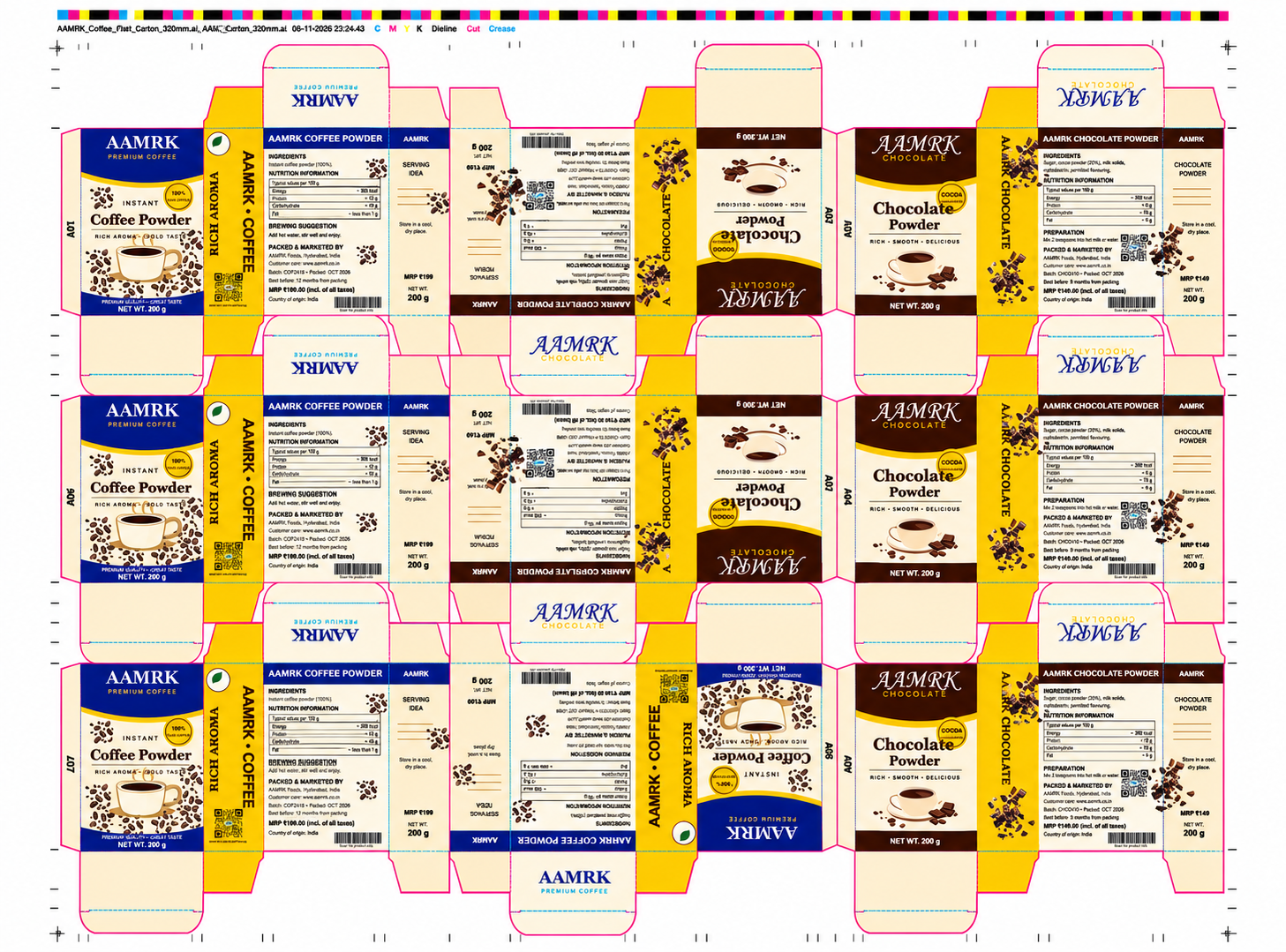
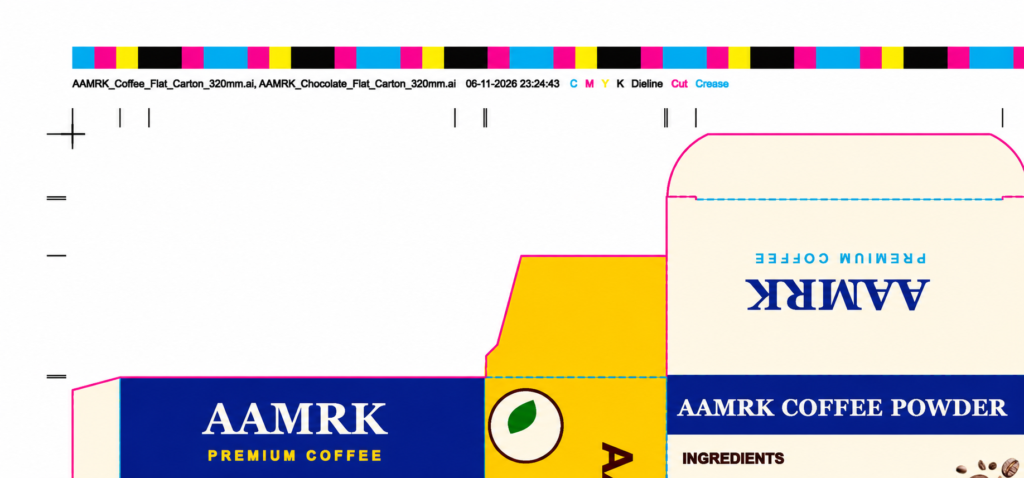
Colour bar and file info. The file info line names the artwork files and the time of the last save, and lists every ink on the sheet in its own colour.
Inks C M Y K-Spots Dieline | Cut | Crease
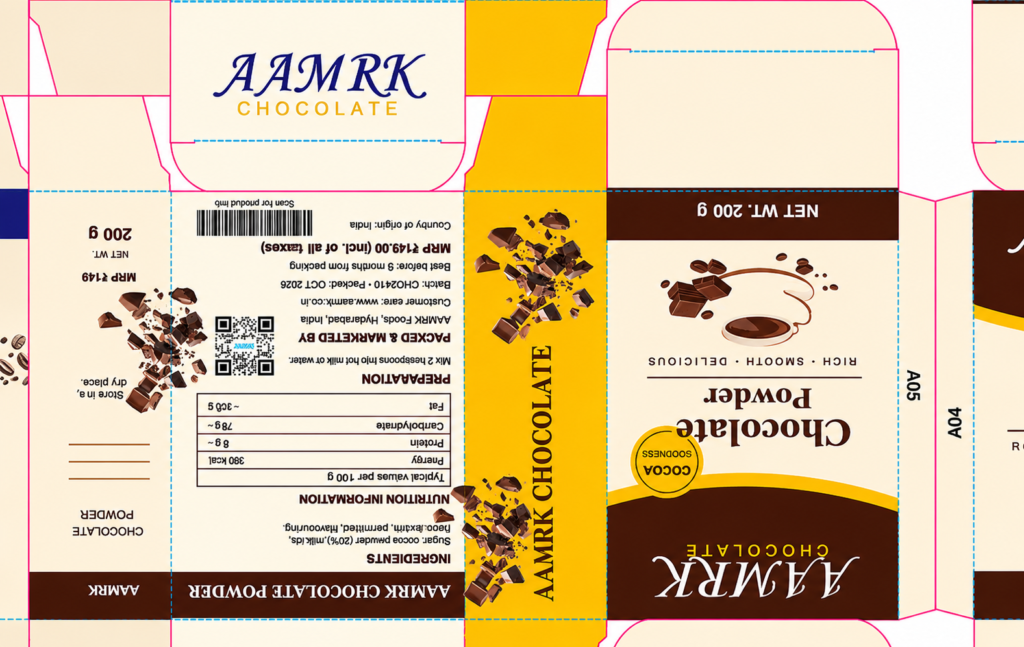
Rotated stations. Station A05 is turned 180° in the layout, and its artwork turns with it. Every station carries its ID for checking at press and die-cutting.
One panel
Three Essential Tabs
The same panel layout in Illustrator and CorelDRAW, so operators who use both need to learn it only once.
Layout Settings
Import die layouts, assign artwork, adjust plate sizes, and update your production sheet.
Mark Settings
Manage bleed, cutting lines, custom marks, templates, and production details.
User Preferences
Choose measurement units and configure default folders for your marks library.